Citing Journal Articles from Databases
Access to all JKM Library resources, physical or electronic, is enabled using OpenAthens, our single-sign-on platform. This is the online equivalent of your library card.
In addition to books you can request, an important part of research is finding journal articles, in which quite a lot of influential debate happens, and where new ideas are often presented before they get into books.
We have another tutorial about finding journal articles in our databases, but equally important to finding them is being able to cite them correctly.
Citation proves that you have consulted relevant literature, and allows your readers—hopefully, eventually, not just your teachers!—to check that literature. Citations mean that you don't have to take another author's word for what the literature says, they make clear who is part of your research community, and they help you to avoid plagiarism.
We have style guides to help you form correct citations of your sources, which is especially important for when your research uses a wide variety of sources.
But when you're citing journal articles, obtained from EBSCO or JSTOR, the database websites themselves have tools to give you well-formatted citations already. And you should use them, it saves time!
EBSCO Citation Tools
In 2024, EBSCO rolled out a completely new user interface, so if you remember where the citation tools used to be, you'll need to know where they are now.
Your first step is to do an EBSCO search for your chosen topic or desired material.
We have two options: a tailored simple search, covering the databases most relevant to the curriculum, or an advanced search of all of our EBSCO databases. And you can always expand the simple search into a search of all databases.
The list of results from your search will present you with information about each article, and you can click on the titles for more.
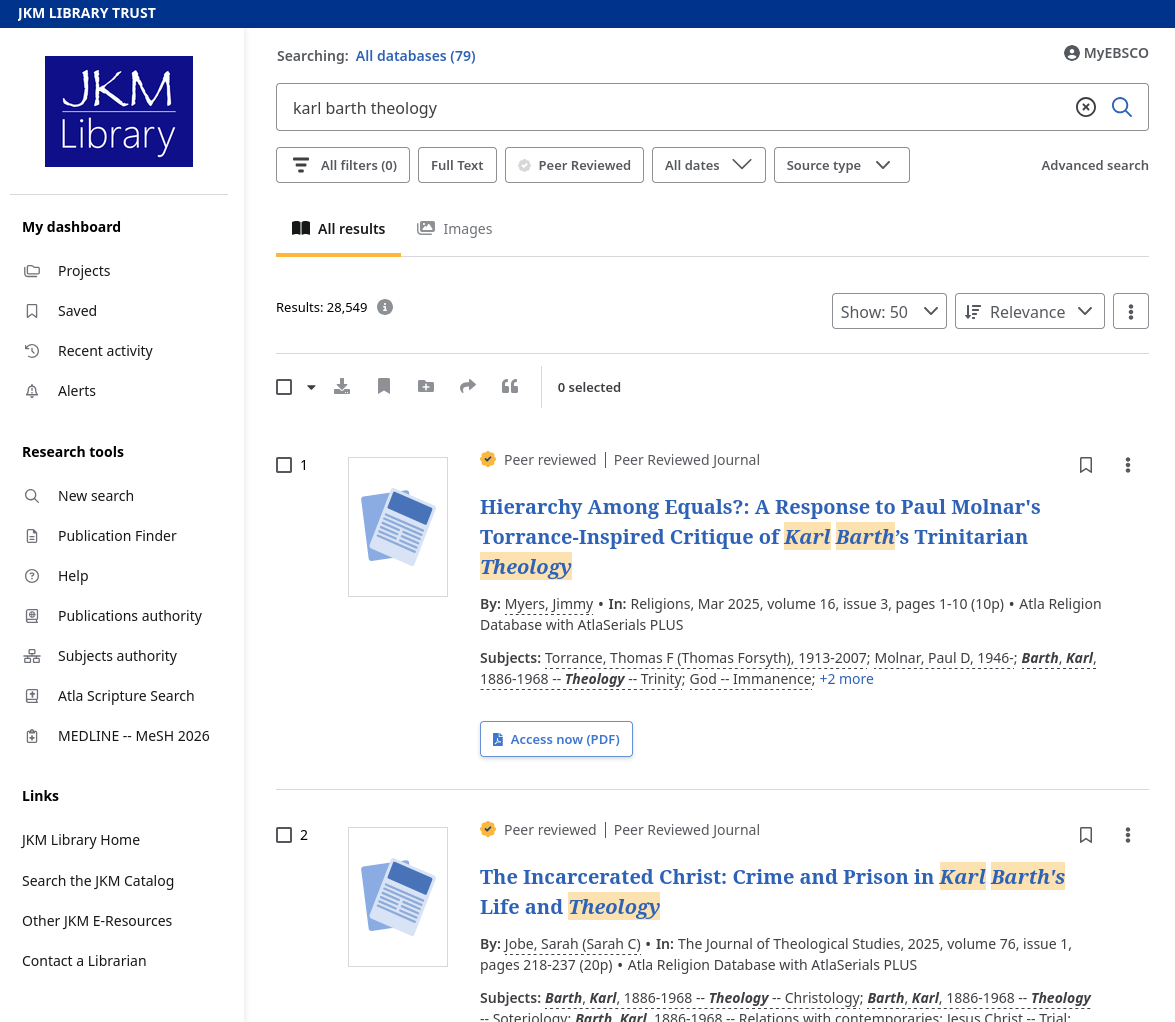
For citations, what you're looking for is the quotation mark icon. When you have clicked on an article in your search results, the quotation mark icon shows up in the upper right.
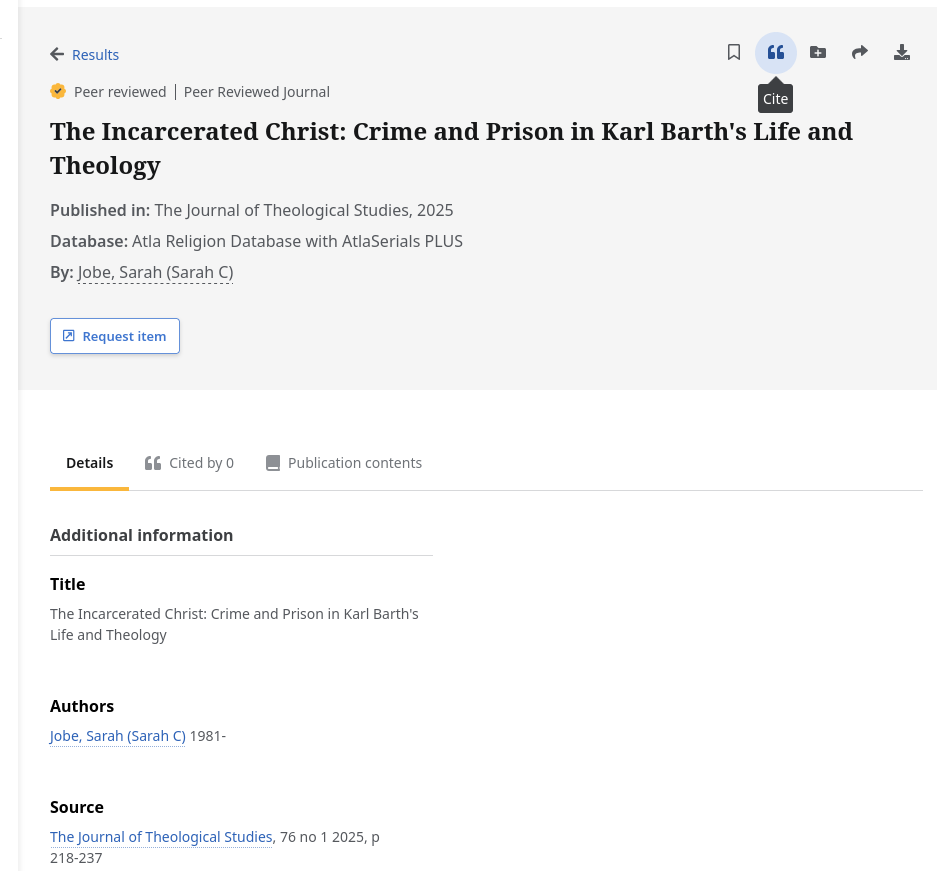
Clicking on it will give you a dialog allowing you to choose citation style, including Chicago Notes-Bibliography, which is what we use most at the seminaries.
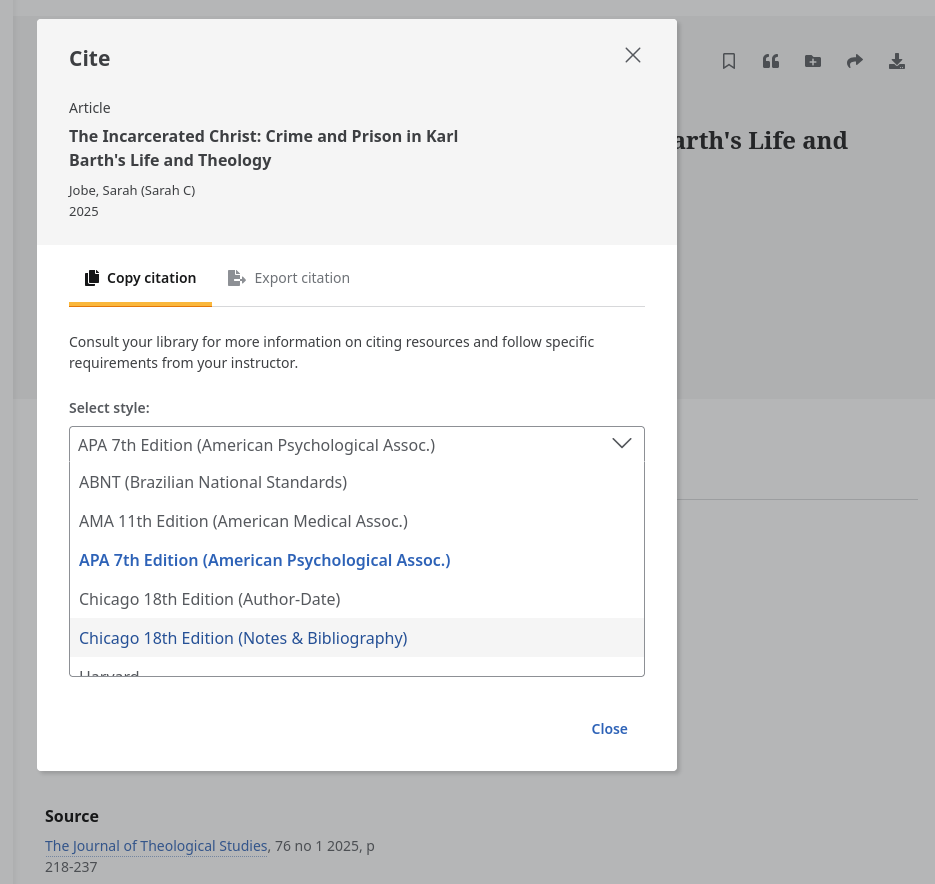
One you select that in the dropdown menu of citation styles, it will give you the desired citation (which you may still need to adjust sometimes).
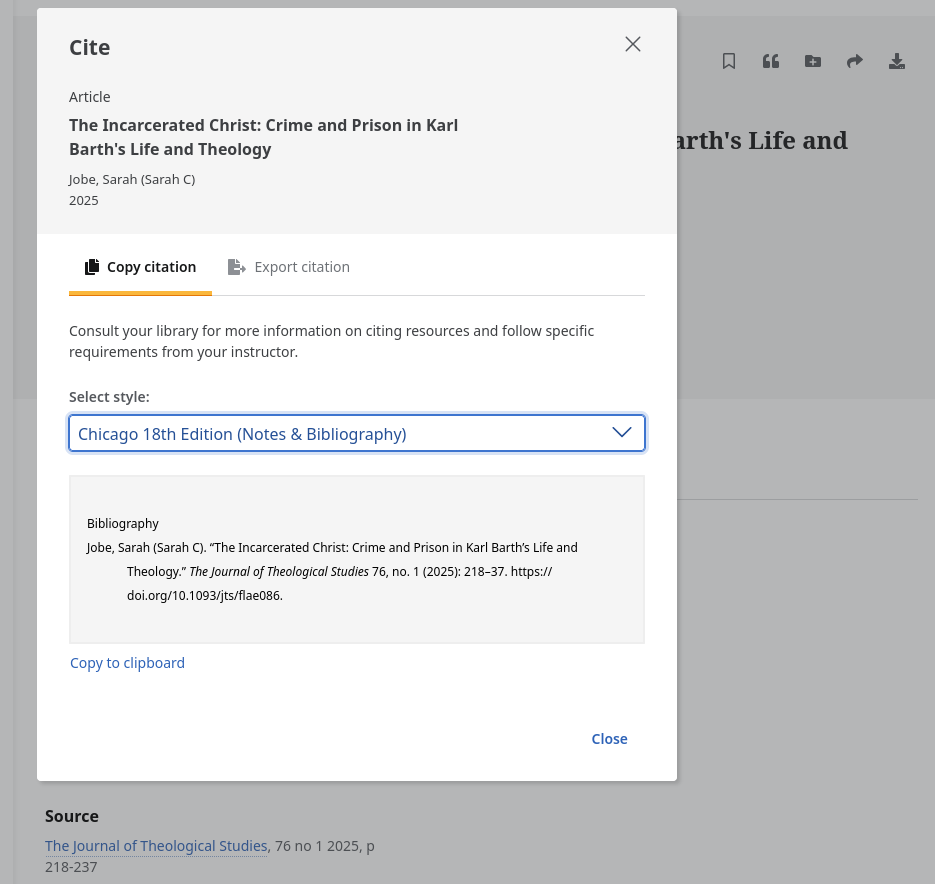
Back in the results list, you can also see a quotation mark icon, at the top left of the listing, below the search fields. That starts greyed out until you select search results from the listing, at which point you can get citations for all selected.
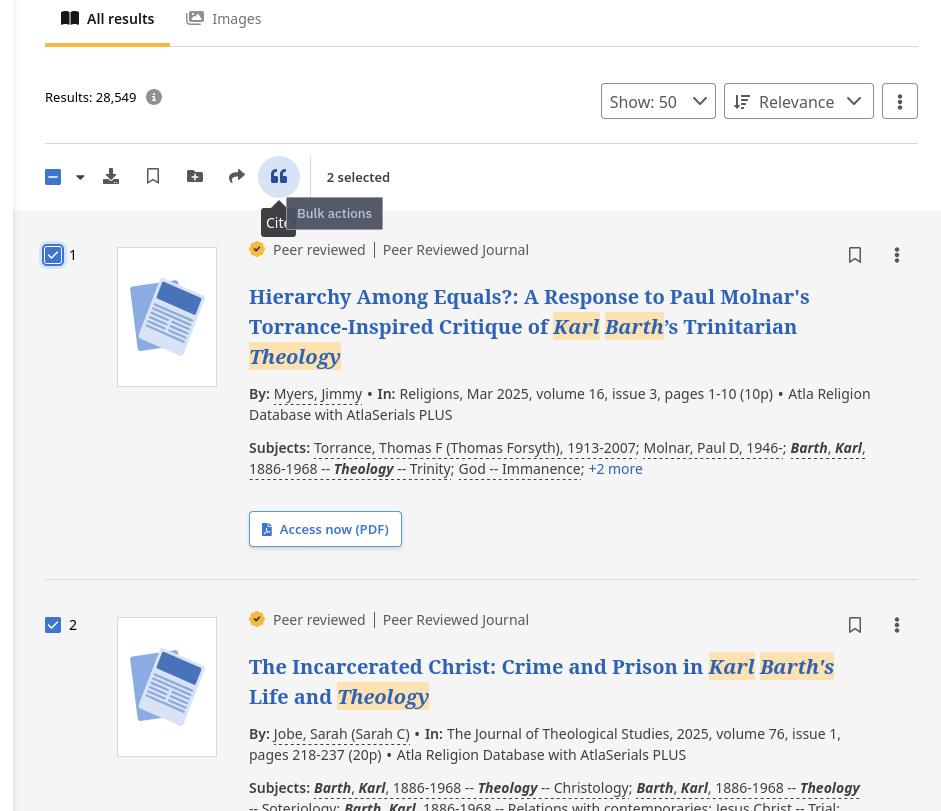
Click the quotation mark icon, and the same dialog pops up, with the citation for the first selected and an indication of how many more. You can copy all to clipboard and paste them into your text editor of choice.
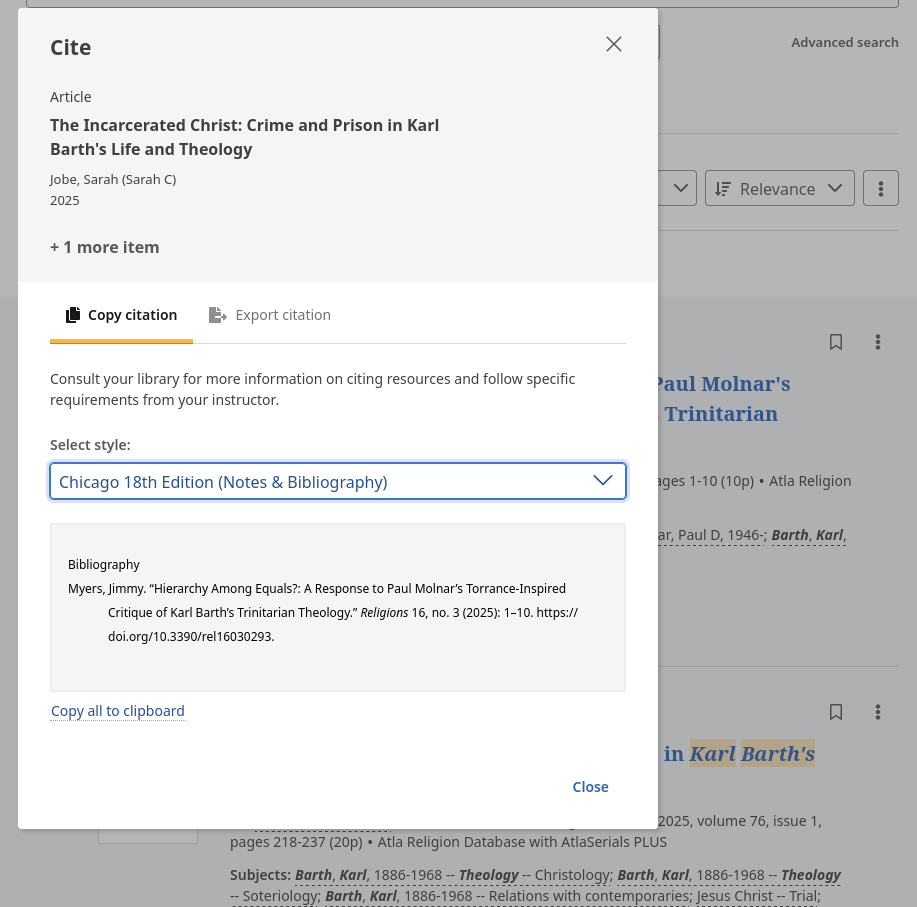
In both cases, you can also use the export function, in the second tab of the dialog, if you have software for managing references. However, plain text copy-and-paste is the default usable by most people.
JSTOR Citation Tools
Our subscription to the JSTOR database provides, by default, a smaller but more select group of results. These are often important additions to the larger pool of results you will get from EBSCO searching.
Just as with EBSCO, your first step with JSTOR is doing a search for your desired topic or material.
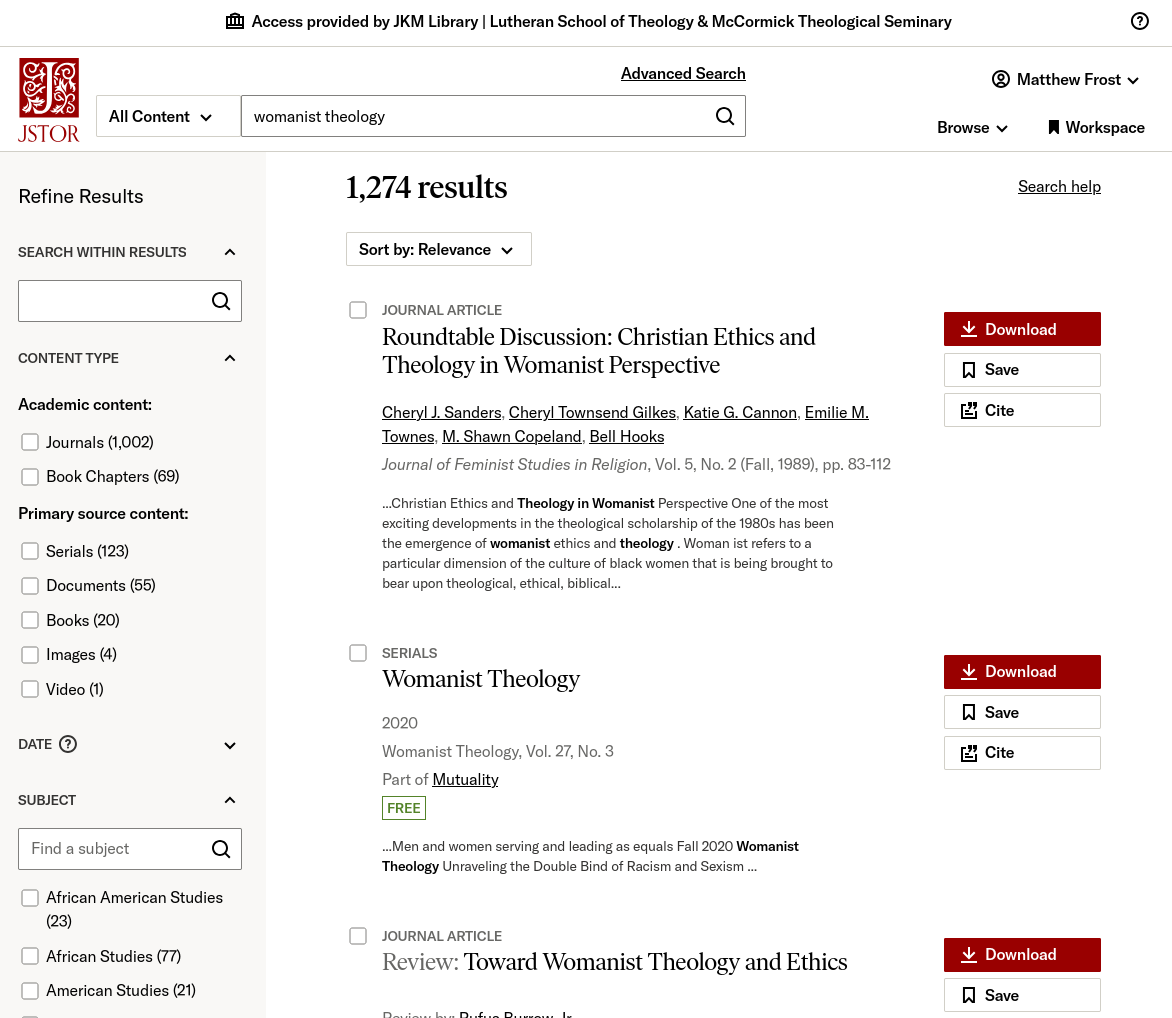
In JSTOR, however, the citations are individually available from the results list. When you click on the "Cite" button, which appears to the right of each result (or below, on narrower screens), a dialog pops up with multiple commonly-used citation formats.
Once again, the Chicago format is the one you will likely be using for work at our seminaries.
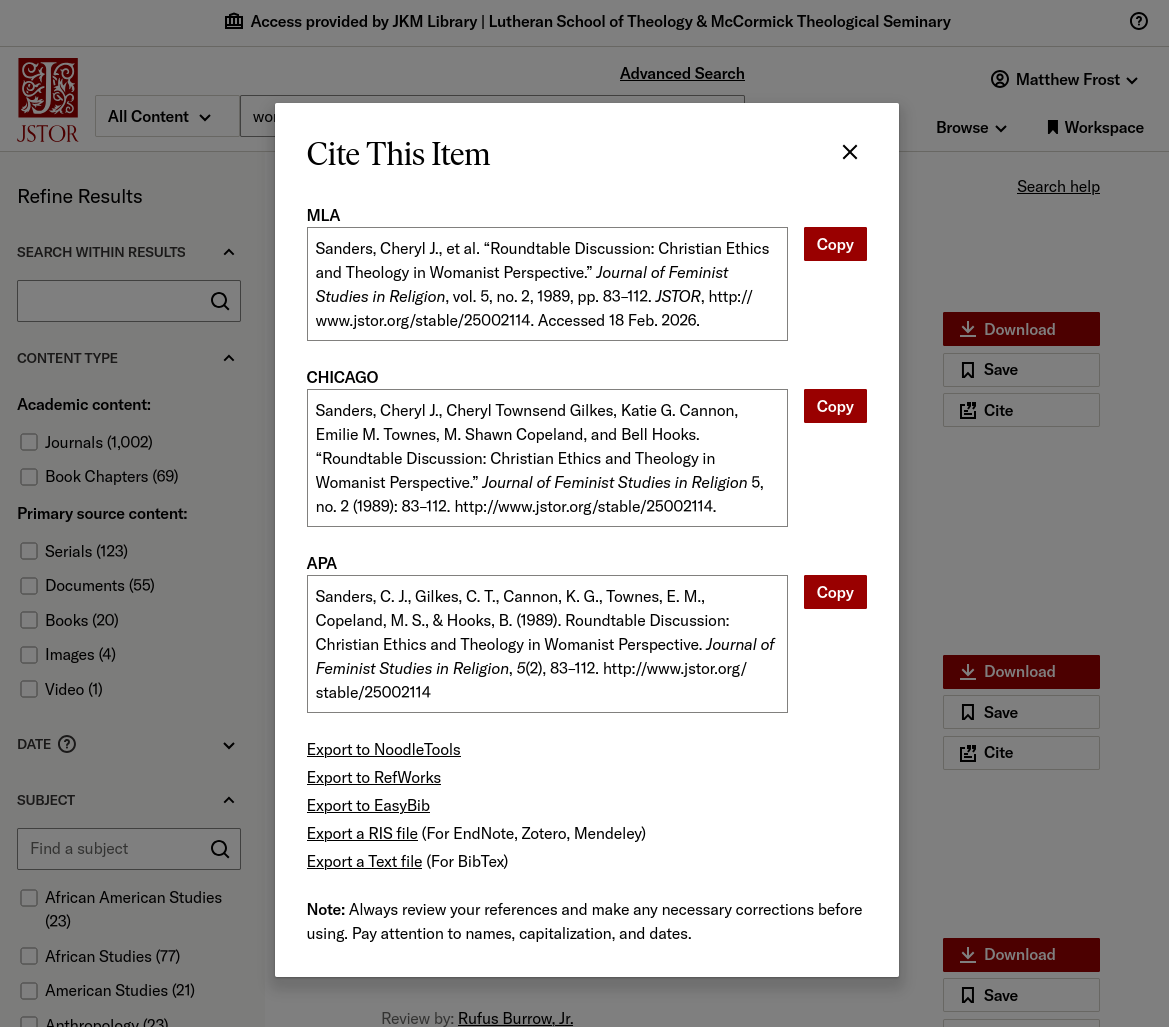
And as with the EBSCO tools, the default is to copy the plain text of the citation, but if you use a reference manager, you can also use the export functions at the bottom of the dialog.


